
There are two ways to reach Sonbahis from a phone: the Android and iOS app announced in the site footer under the words "Hemen Tıkla İndir", or the mobile browser. The account is the same in both cases, and balance, bonuses and history do not depend on the device. This page explains the setup, adding a home-screen shortcut, what to do when the address changes and the security settings, using information dated 17.11.2026. Warning: access to this site may be blocked in Turkey. The guide is for readers aged 18 and over; gambling can be addictive and GambleAware offers free help.
| Topic | Details |
|---|---|
| App | Android and iOS, link in the site footer |
| Browser | Full access in a mobile browser |
| Account | Same as on desktop |
| Announcement channel | Official Telegram and heylink.me/sonbahis |
| Shortcut | Can be added to the home screen |
- 01Using Sonbahis on a Phone
- 02Installing the App and Adding a Shortcut
- 03What to Do on a Phone When the Address Changes
- 04Mobile Security Settings
- 05Common Mobile Problems
- 06FAQ
Using Sonbahis on a Phone

In a mobile browser the site adapts to the screen, and the menu, the game list, the coupon and the cashier work as on a desktop. The app adds quick access and notifications. The choice between them depends on the storage space on the device and on whether you want to reinstall after an address change.
Landscape mode makes live tables and the coupon easier to read. On a weak connection a live stream may stall, so prefer Wi-Fi or a strong mobile signal when betting live. Sign-up and login steps are on the login and sign-up page and address information is on the current address page.
Installing the App and Adding a Shortcut
- Learn the current address from the official Telegram channel or the heylink.me/sonbahis page and open the site.
- Tap the "Hemen Tıkla İndir" link in the footer and choose the version for your device.
- If Android asks to allow installs from unknown sources, switch it on only for the installation and off afterwards.
- On iPhone, follow the steps in the installation guide and approve the developer only for this source.
- Open the app and sign in with your existing account; do not register again.
- If you prefer no app, open the site in the browser and use the share or three-dot menu to "Add to Home Screen".
- Switch on notifications for the official channel and renew the app or the shortcut when the address changes.
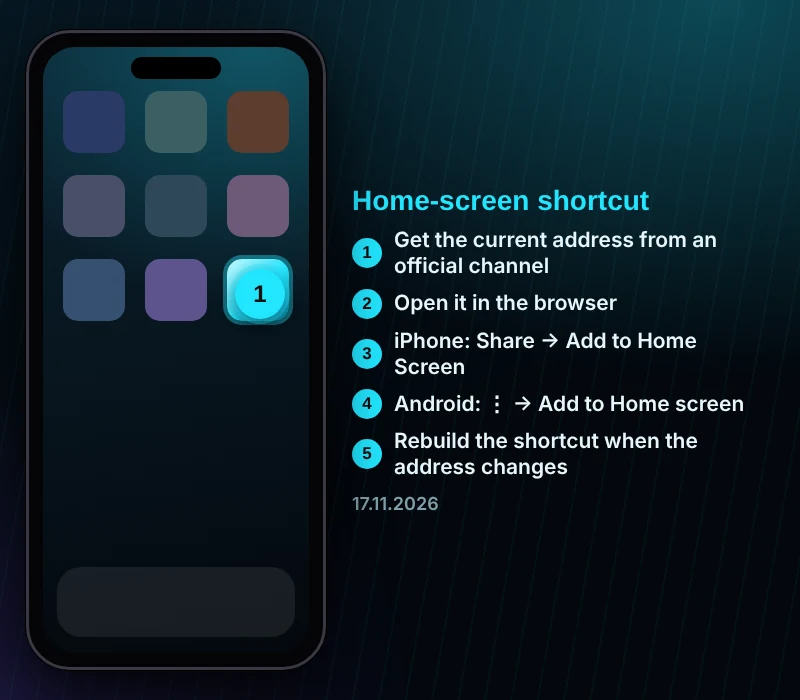
Both the shortcut and the app may be tied to the address of the day; after a change, delete the old shortcut and add a new one.
What to Do on a Phone When the Address Changes

When the domain is blocked, the page does not open or loads halfway on a phone. First switch between mobile data and Wi-Fi, then read the latest notice on the official channel. Type the address from the notice into the browser instead of tapping a link in a message. If the app does not connect, look for an app announcement on the official channel.
Clearing the cache solves many cases. Delete the site data in the browser settings, close the browser and try the address again. If data-saver mode is on, turn it off, since it can break the loading of some pages. The private DNS setting of the phone can also help against operator-level outages.
Mobile Security Settings
A few settings are enough to keep an account safe on a phone. Keep the screen lock on, make sure the device lock is strong if the browser stores the password, and avoid logging in over open public Wi-Fi. Keep the date and time automatic, as a wrong clock causes secure-connection errors.
The app should be downloaded only from the site's own link. Installation files passed around in chat groups, forums or advertisements may be copies and can put malware on the device. Be careful with links sent to you directly on Telegram, because the official channel never asks for a password, a verification code or card details.
Common Mobile Problems
If a page loads halfway, change the connection and clear the cache. If the login screen opens but sign-in fails, try the password reset. When a live stream stutters, lower the picture quality or move to a stronger network. If form fields jump when the keyboard opens, update the browser. When the app asks for an update, install it only from the official link.
FAQ
Q: Is there a Sonbahis app for Android and iOS?
A: Yes, the download link is in the site footer under "Hemen Tıkla İndir", and the browser works as well.
Q: Where should the app be downloaded from?
A: Only from the site's own page; files in chat groups or ads may be copies.
Q: Does the app keep working after an address change?
A: It depends; if it stops, check the official channel and renew the app or shortcut from the official link.
Q: Is the mobile account the same as on desktop?
A: Yes, balance, bonuses and history are not tied to a device, and the same username and password apply.
For Sonbahis on mobile, install the app only from the official link, take the address from the announcement channel and check the domain at every login.
Expert check: Burak Şahin · updated 17 November 2026
This site contains affiliate links. Our ratings are independent of any commission we receive.